Publish Content to Community and XenseAR App
After completing content creation and editing in XenseAR Editor, you can publish your project to make it available on the XenseAR mobile application for end users.
Publishing ensures your AR experience is reviewed and approved before going live.
1. Publishing Workflow
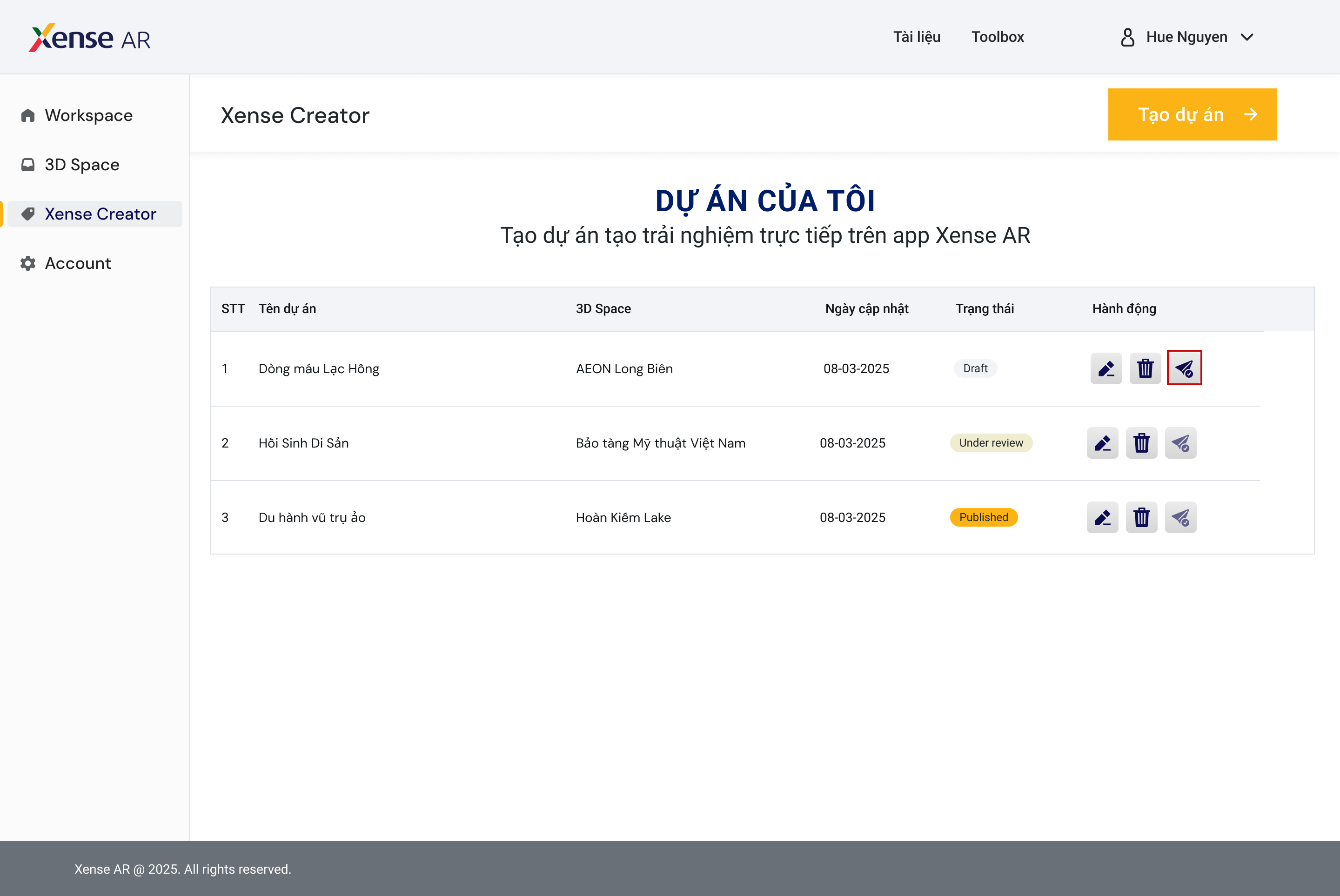
Step 1 — Draft Status
When a project is newly created or being edited, it is automatically set to:
Draft
Projects in Draft state are not visible to end users.
Step 2 — Submit for Publishing
On the Creator Portal:
- Click the Publish button.
- The system updates the project status to:
Under Review
This indicates the project is pending administrative approval.
Step 3 — Admin Review
System administrators review:
- Content accuracy
- Asset compliance
- Technical performance
- Community guideline adherence
Step 4 — Published
If approved:
- Project status changes to Published
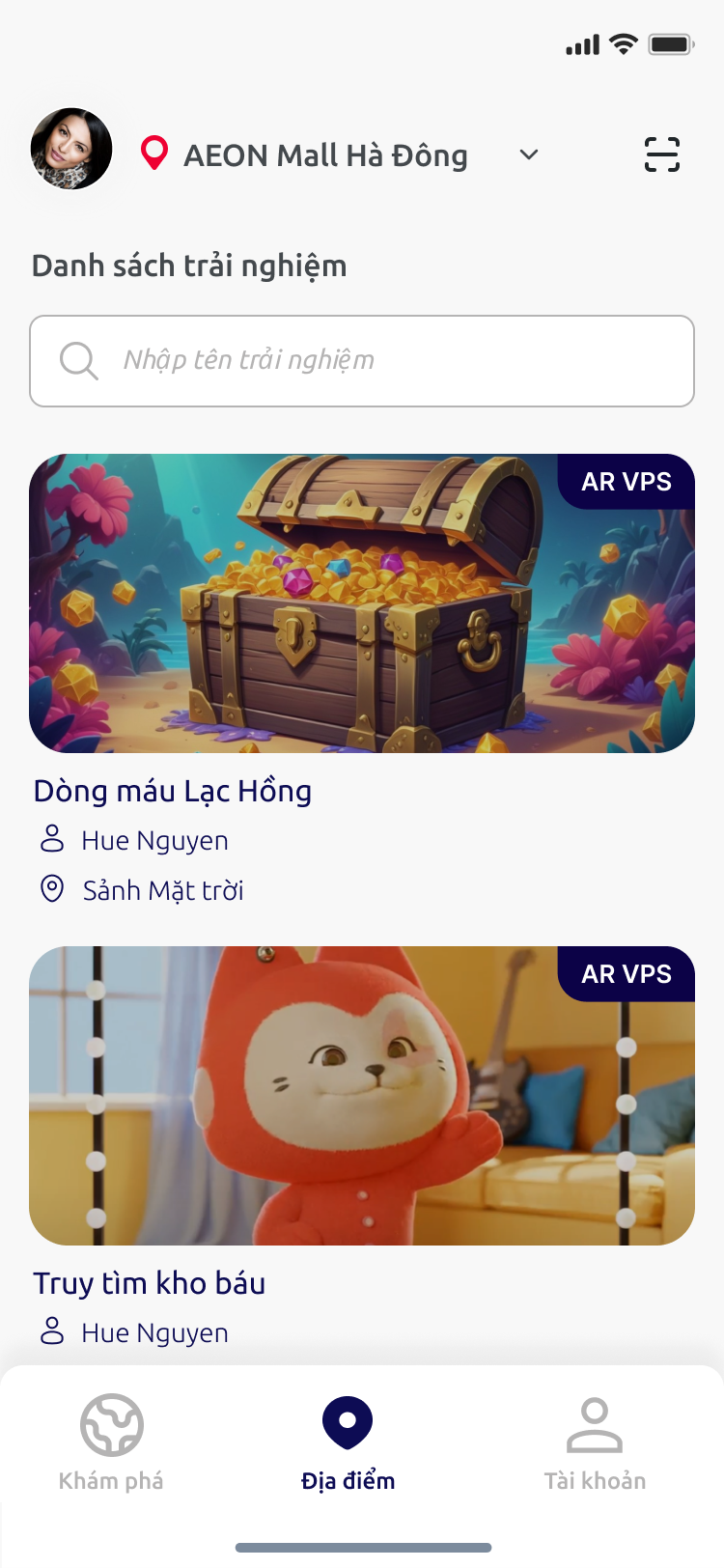
- The AR experience becomes publicly accessible on the XenseAR App

2. Updating a Published Project
If you modify:
- Project information
- Spatial data
- AR content
- Anchors or assets
The project will automatically revert to:
Draft
You must click Publish again to resubmit the updated version for review.
⚠️ Warning
Content updates are not reflected on the live application until re-approved.
3. Best Practices Before Publishing
ℹ️ Recommendation
Before clicking Publish, verify:
- All anchors are correctly positioned
- No missing assets or broken URLs
- Asset sizes meet platform requirements
- Performance has been tested on target devices
- Thumbnail and project metadata are finalized
Review time may vary depending on content size and submission volume.
Once approved, your AR experience becomes available to the Community and visible inside the XenseAR mobile application.