Adding AssetBundle Content
This guide explains how to create and configure an AssetBundle-based Anchor within a Block.
Prerequisites
- A valid AssetBundle URL.
- The target Block already exists in the scene hierarchy.
Procedure
-
Create an Empty GameObject under the Block Root
In the Unity Hierarchy, create a new
Empty GameObjectas a child of theBlock Root.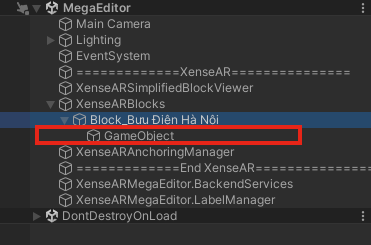
-
Add the
Assetbundle Anchor EditorcomponentSelect the newly created GameObject and add the
Assetbundle Anchor Editorcomponent.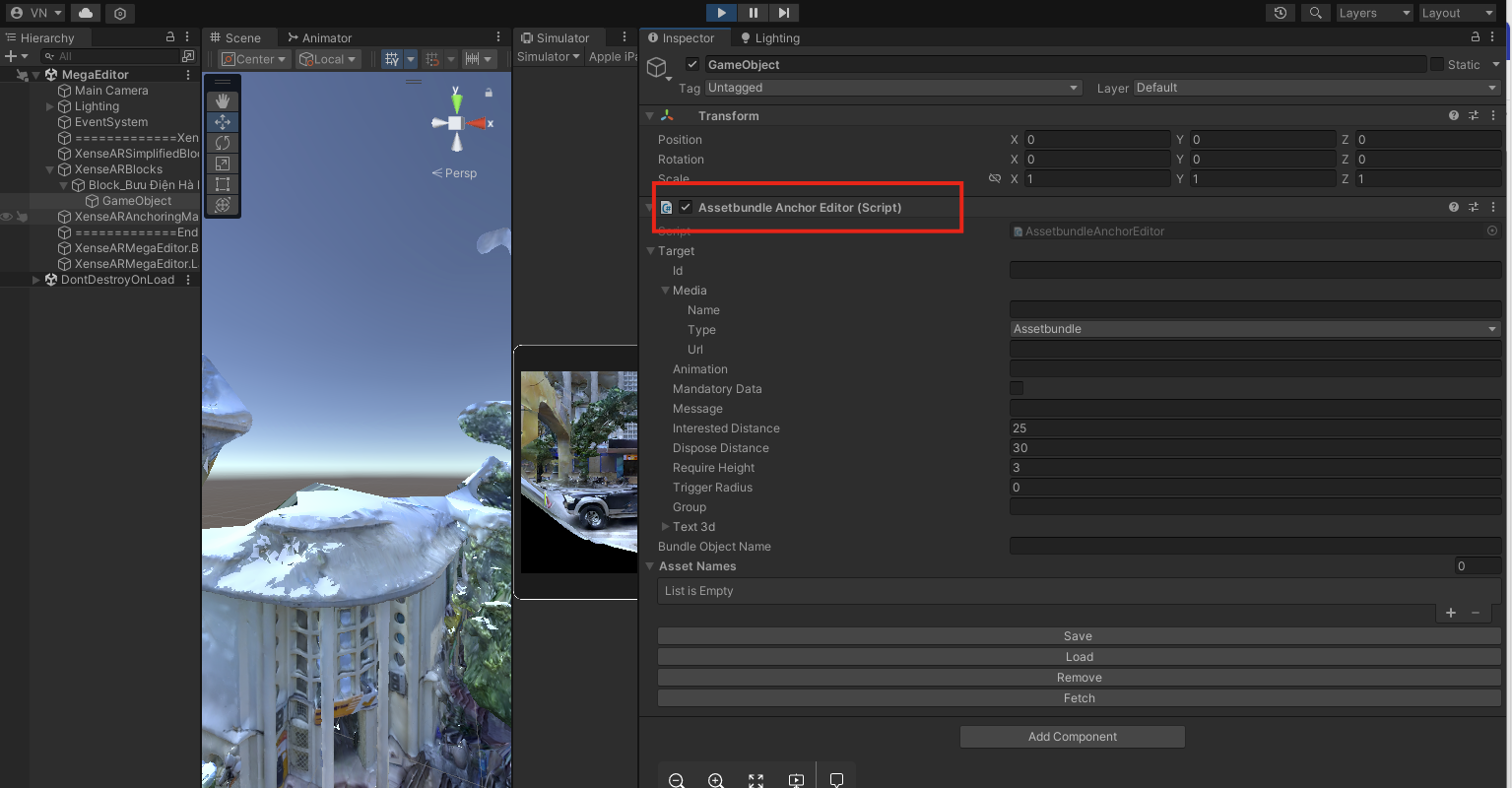
-
Enter the AssetBundle URL
In the
Media.Urlfield, provide the URL of the existing AssetBundle.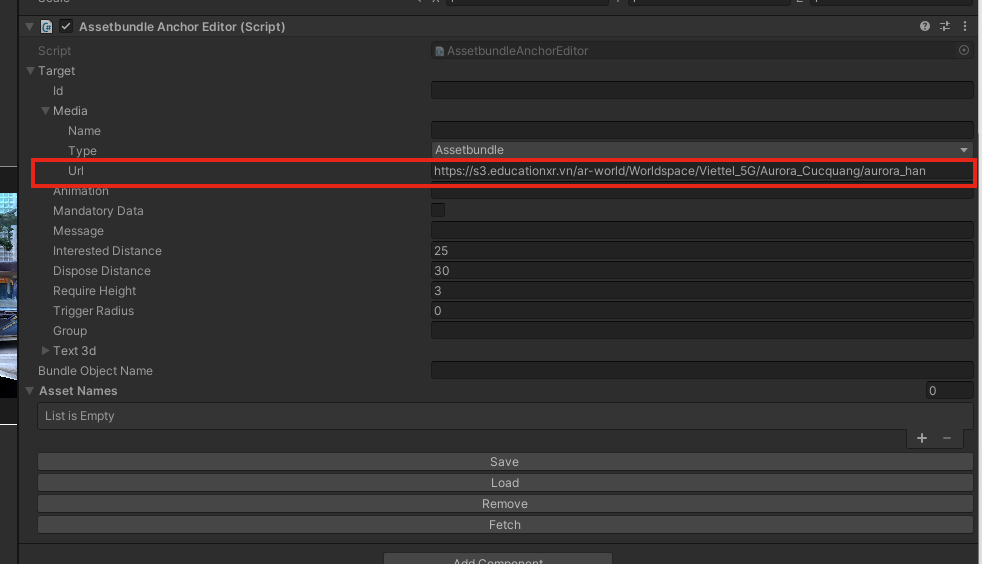
-
Fetch available assets
Click
Fetchto retrieve the list of available asset names contained in the AssetBundle.
-
Assign the Bundle Object Name
Copy the desired asset name from the fetched list and paste it into the
Bundle Object Namefield.
-
Configure the
GroupfieldAssign an appropriate value to the
Groupproperty for logical organization.
-
Save and adjust Transform
Click
Saveand wait for the content to load.Once loaded, you can modify the Anchor’s
Transform, including:- Position
- Rotation
- Scale
ℹ️ Info
If the content does not appear after saving, verify that:
- The AssetBundle URL is valid and accessible.
- The
Bundle Object Namematches exactly (case-sensitive) with the asset name inside the AssetBundle.