Filming Guidelines Using a Smartphone
Smartphone Filming – A Flexible Solution for Small Spaces
Collecting spatial data using a smartphone’s standard camera allows you to easily create spatial maps without specialized equipment.
This method is especially suitable for areas under 100m², offering fast operation and cost efficiency.
Main contents:
- General Requirements
- Smartphone Trajectory Planning Guide
- Spatial Video Recording Guide.
General Requirements
| No. | Criteria | Requirement | Details |
|---|---|---|---|
| 1 | Spatial Video Recording Application | Use the phone’s default Camera app | - Prefer smartphones with sharp image quality and accurate color reproduction (recommended: iPhone 12 series or later). - Do not use third-party camera apps. - Do not use filters. - Keep footage stable, avoid strong shaking. Recording quality: Full HD 60fps or higher, or enable 4K mode if available. |
| 2 | Correct Data Recording Application | Required | Install and use the XenseAR ToolBox application in Calibration mode to record correct data. |
Note: Spatial video recording and correct data recording are two separate steps (Refer to the XenseAR ToolBox User Guide ).
Smartphone Trajectory Planning Guide
| Section | Detailed Instructions |
|---|---|
| Objective | - Capture all viewpoints and standing positions within the space. - Ensure frame-to-frame continuity in the video. - Plan trajectories for areas smaller than 1,000m² with simple paths, few corners and turns. - For spaces with strong lighting differences or sudden transitions (e.g., gates, tunnels), limit passing through those areas when possible. |
| Trajectory Planning Principles | - Scan the entire space by designing fully covered routes. - Each path must be recorded 6 times, with each phone orientation counted as one recording. |
| How to Draw the Trajectory | Step 1: Collect a 2D map - Outdoor areas: Google Maps, AutoNavi. - Floor plans / Construction drawings. - Survey and sketch the space manually if needed. Step 2: Draw a trajectory suitable for the space - Follow main pathways and create loops around areas. - Pay attention to connection points between zones to avoid blind spots. - Suggested tools: GIF Maker, GIF Brewery, or any tool that allows drawing route trajectories. |
| Trajectory Illustration | 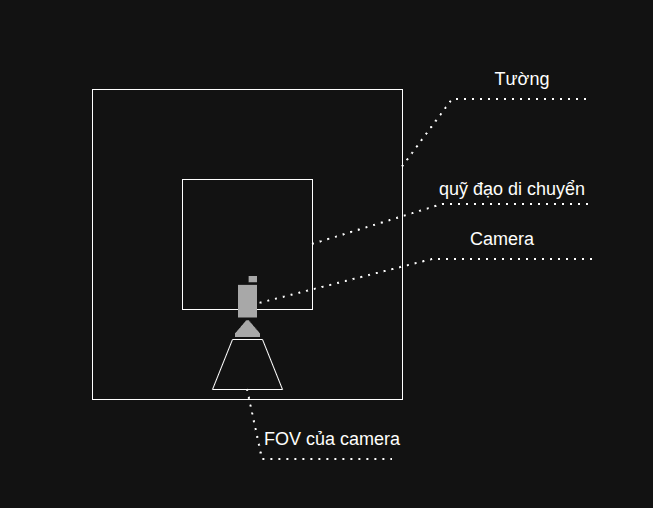 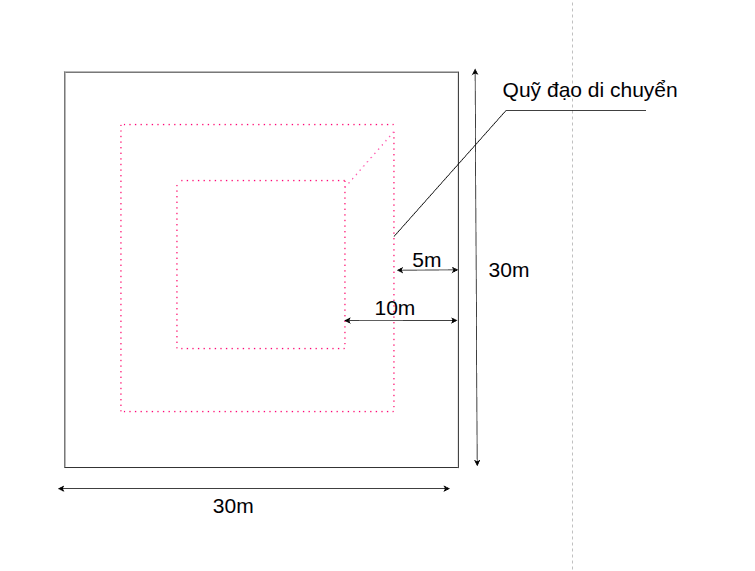 |
Spatial Video Recording Guide
Moving and Recording with a Smartphone
| No. | Task | Objective | Details & Illustration |
|---|---|---|---|
| 1 | Draw the movement trajectory | Define paths that simulate real standing positions in the space. | - Draw multiple paths to fully cover the space. - Each path represents the route the operator will follow. |
| 2 | Hold the phone correctly: 6 directions per path | Fully reproduce user viewpoints in the space. | - Always hold the phone horizontally (landscape mode). - Record each direction as a separate video (Left, Right, Front, Back, Up, Down). - Hold the phone firmly and avoid shaking. - Each path will result in 6 videos. |
| 3 | Move slowly ~0.5m/s | Maintain smooth and clear footage without blur or jitter. | - Walk slowly and steadily throughout recording. - Avoid sudden stops or quick turns. |
| 4 | Maintain optimal distance ~2m from objects | Accurately reconstruct real-world spatial details. | - Keep ~2m distance from objects such as walls, tables, chairs, etc. - Avoid filming too close (may cause blur or incomplete framing). - In narrow spaces, distance can be reduced to 0.5m. |
| 5 | Record video | Ensure sufficient data for virtual space reconstruction. | - Record all paths according to the drawn trajectory. - Each path must include 6 directions. - Follow instructions from Steps 1–4 throughout recording. Example: - A simple space has 2 paths. - Each direction is recorded as 1 video. → Total: 2 paths × 6 directions = 12 videos. |
| 6 | Record Correct Data | Calibrate the virtual space | - Record correct data following the instructions in the XenseAR ToolBox User Guide section. |
| 7 | After Recording | Ensure completeness and quality compliance | - Verify sufficient quantity: 6 videos per path. - Confirm all 6 directions are recorded correctly according to the trajectory. - Confirm correct data is recorded. - Upload original high-quality videos and correct data to the Developer Portal or send them to platform support staff. |
Last updated on