Xense AR VPS Integration Guide for iOS Native App
This document describes how to integrate Xense AR to use the VPS (Visual Positioning System) service in an iOS native application.
Download iOS Template Project
Download the iOS template project:
https://s3.educationxr.vn/ar-world/SDK/iOS/ios_template.zip
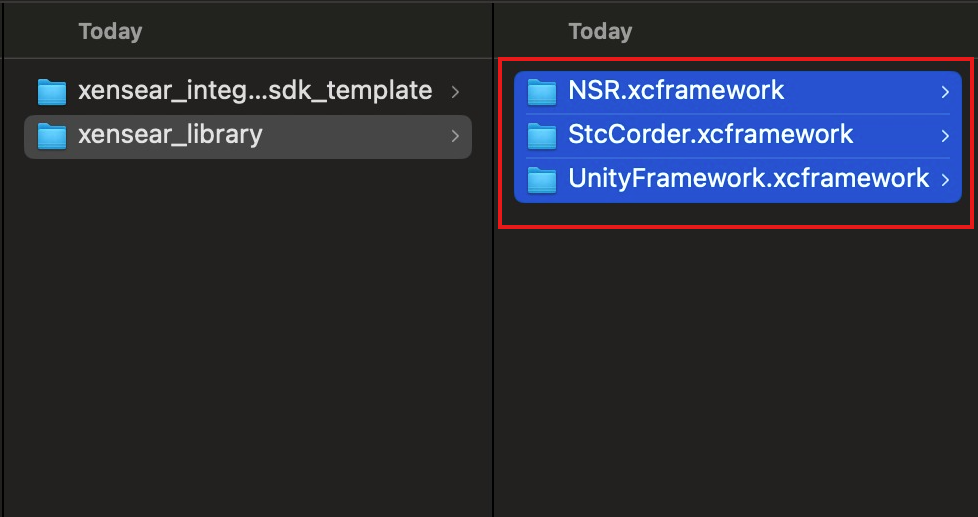
Import xcframework Files
- Extract the downloaded template.
- Import the required
xcframeworkfiles into your target project.
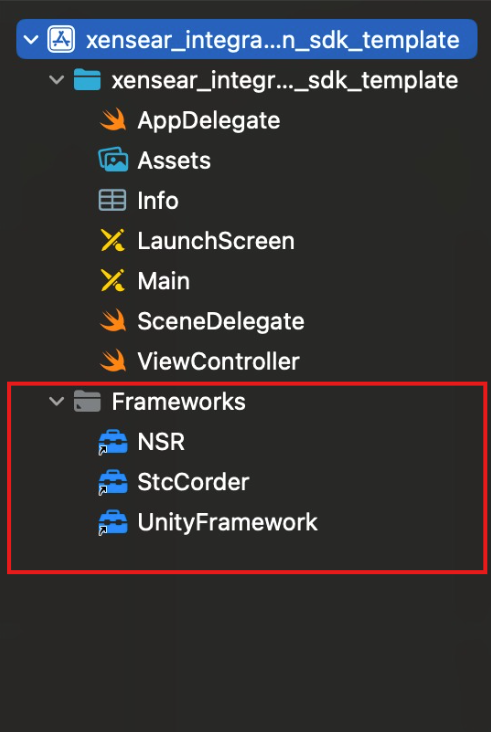
After a successful import, the project structure should include a Frameworks folder as shown below:
⚠️ Warning
Ensure all imported frameworks are added to Frameworks, Libraries, and Embedded Content with the correct embedding option.
Update Info.plist
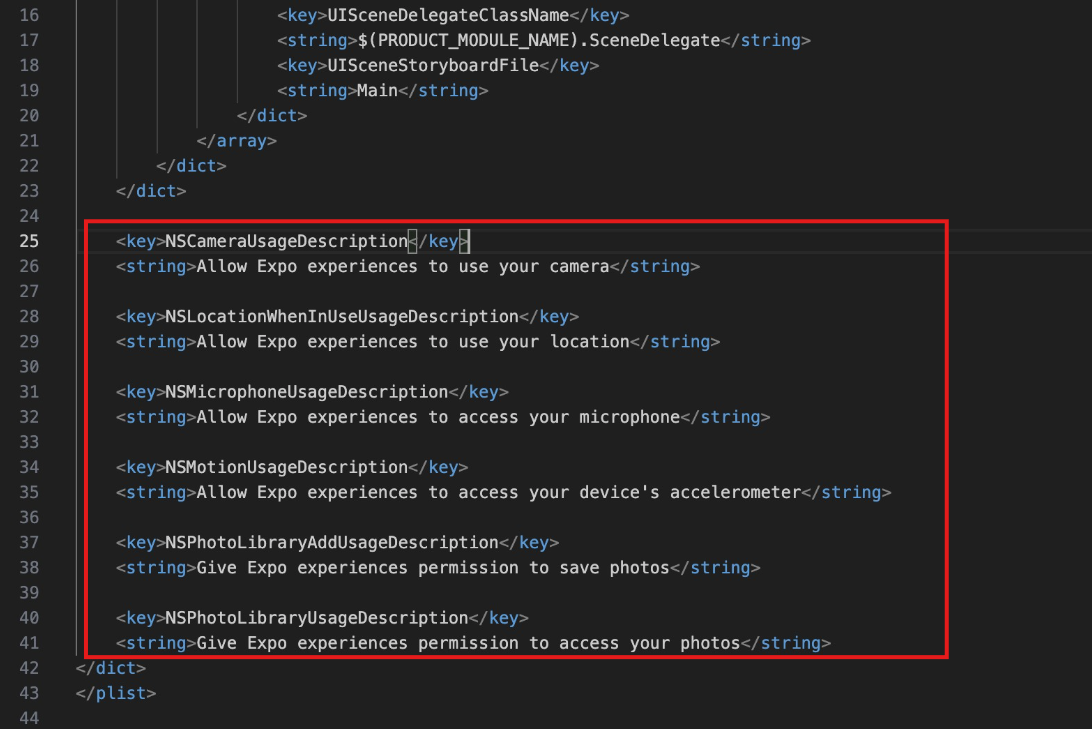
Add the required permission descriptions to the Info.plist file.
Adjust the descriptions to match your application context.
ℹ️ Info
Camera and motion permissions are required for VPS tracking and AR rendering.
Configure AppDelegate
Import Required Protocols
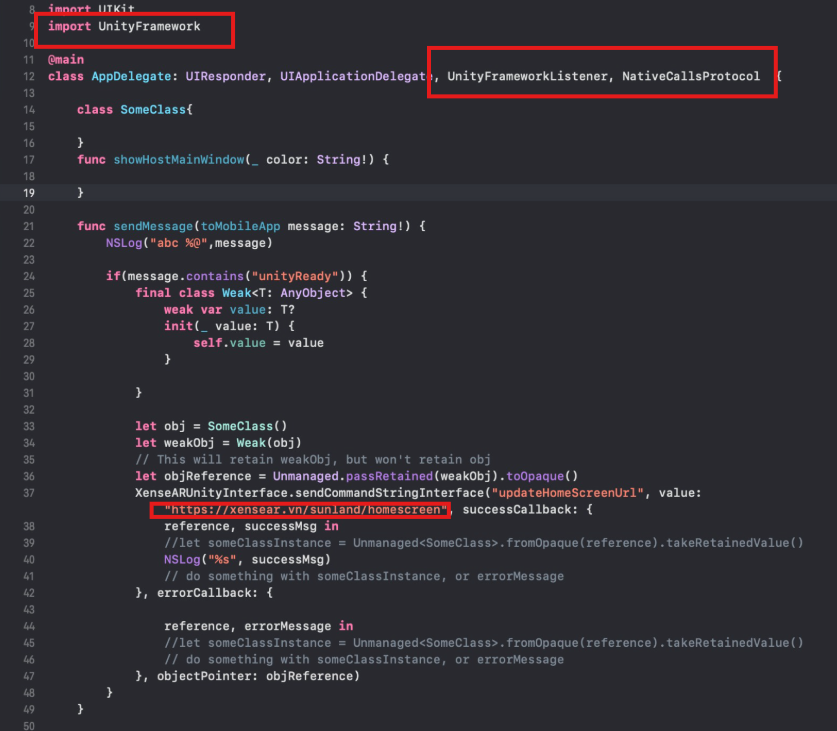
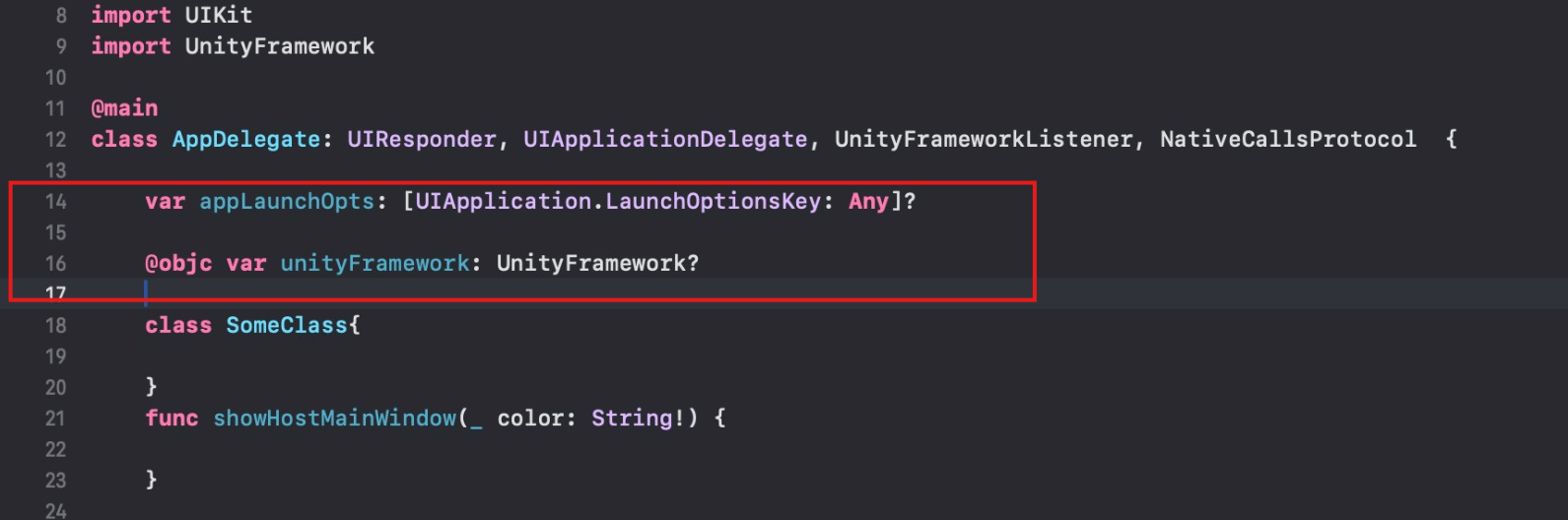
- Import
UnityFramework. - Make
AppDelegateinherit from:UnityFrameworkListenerNativeCallsProtocol
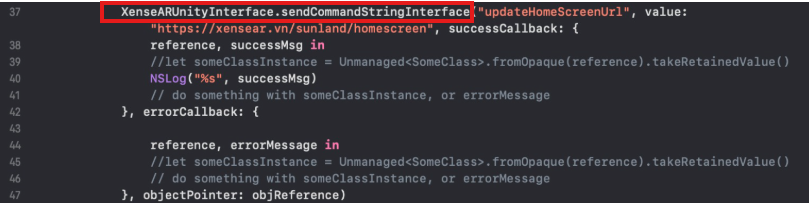
Update the Url value to the endpoint provided by Xense.
- The
sendMessagefunction receives messages from Unity.
Themessageparameter is a JSON string with the structure:{"type": "unityReady", "message": ""}. To send a message to Unity, usesendCommandStringInterface.
- Add the required components to initialize the Unity view.
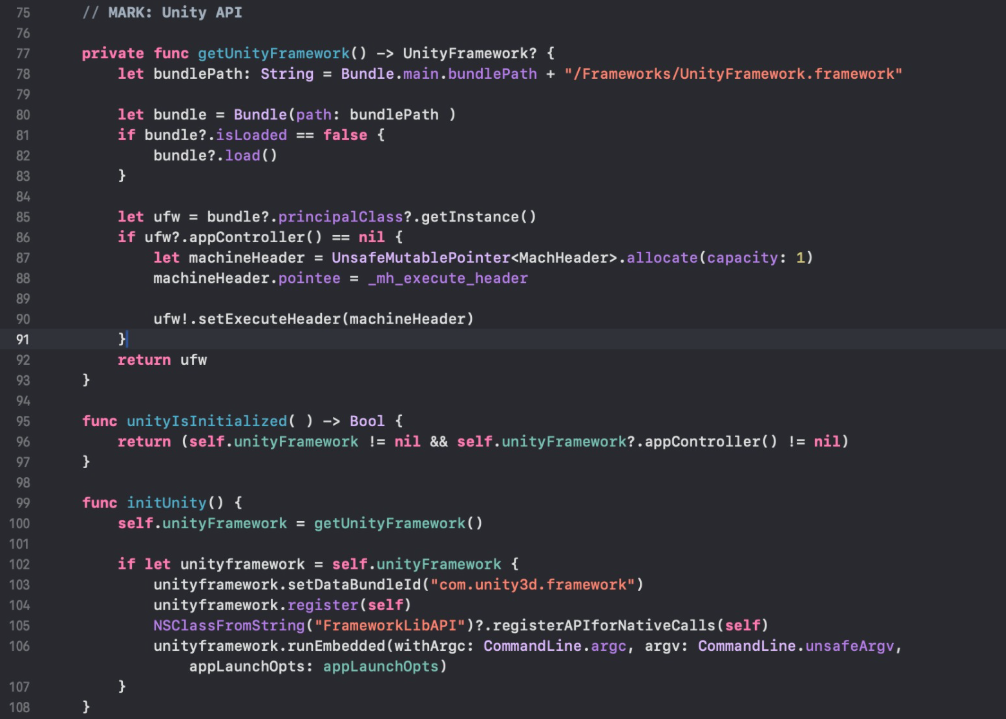
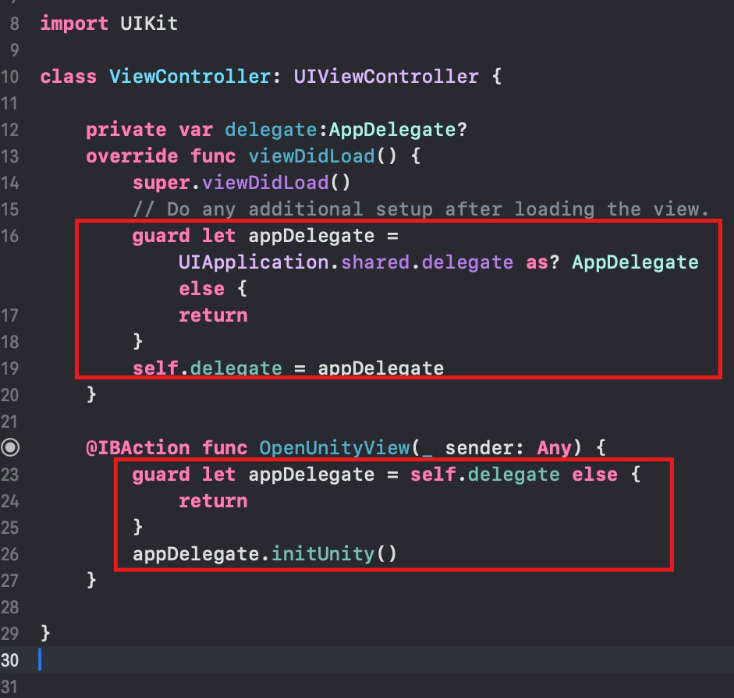
Open Unity View
To open the Unity view, call the initUnity function implemented in AppDelegate.
Set Build Configuration to Release
Change the Scheme Build Configuration to Release.
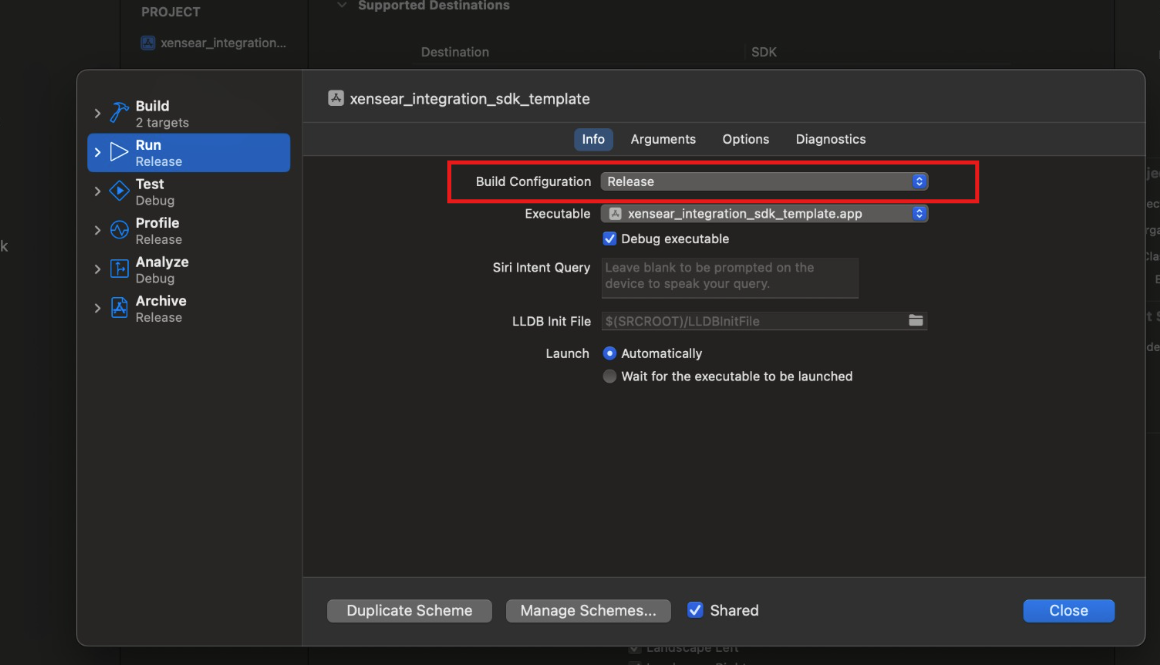
⚠️ Warning
Running the application in Debug configuration may cause performance instability or unexpected Unity Runtime behavior.
Verify Integration
Run the application to verify that the integration is successful.