Adding Image Content
This guide describes how to create and configure an Image-based Anchor within a Block.
Prerequisites
- A valid image URL (e.g.,
.png,.jpg,.jpeg,.webp). - The target Block already exists in the Unity Hierarchy.
Procedure
-
Create an Empty GameObject under the Block Root
In the Unity Hierarchy, create a new
Empty GameObjectas a child of theBlock Root.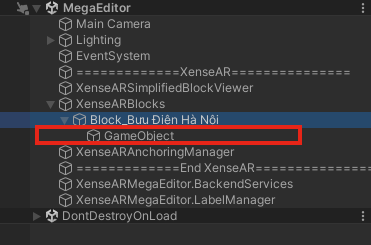
-
Add the
Image Anchor EditorcomponentSelect the newly created GameObject and add the
Image Anchor Editorcomponent.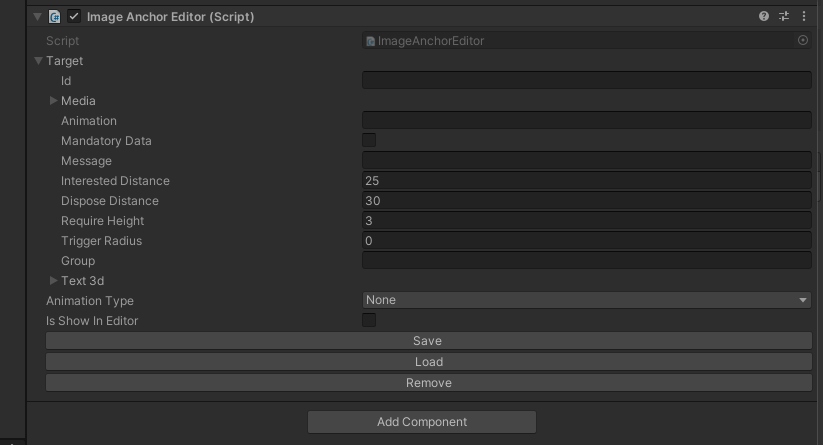
-
Enter the Image URL
Provide the URL of the image file in the
Media.Urlfield. -
Configure the
GroupfieldAssign an appropriate value to the
Groupproperty for logical organization. -
Select the
Animation TypeChoose the desired animation behavior for the Image Anchor (if supported).
-
Click
Saveand wait for the content to loadAfter saving, the image will be downloaded and instantiated in the scene.
Once loaded, you can modify the Anchor’s
Transform, including:- Position
- Rotation
- Scale
ℹ️ Info
Image Anchors are typically rendered as flat planes in World Space. Ensure correct scale and orientation to match the intended viewing direction.
⚠️ Warning
Large image files may increase loading time and memory usage, especially on mobile or AR headset devices. Optimize image resolution before deployment.