XenseAR ToolBox Application User Guide
Installation
Download link for Android (Updating…)
Download link for iOS
(Note: You must install TestFlight from the App Store before installing XenseAR Recorder.)
Application Overview
Features
XenseAR ToolBox is an application used to:
- Collect correct data (for both standard cameras and 360 cameras)
- Collect trajectory data (for 360 cameras)
- Test spatial accuracy
After launching the XenseAR ToolBox application installed on your phone:
- If this is your first time opening the app, please grant camera access permission when prompted.
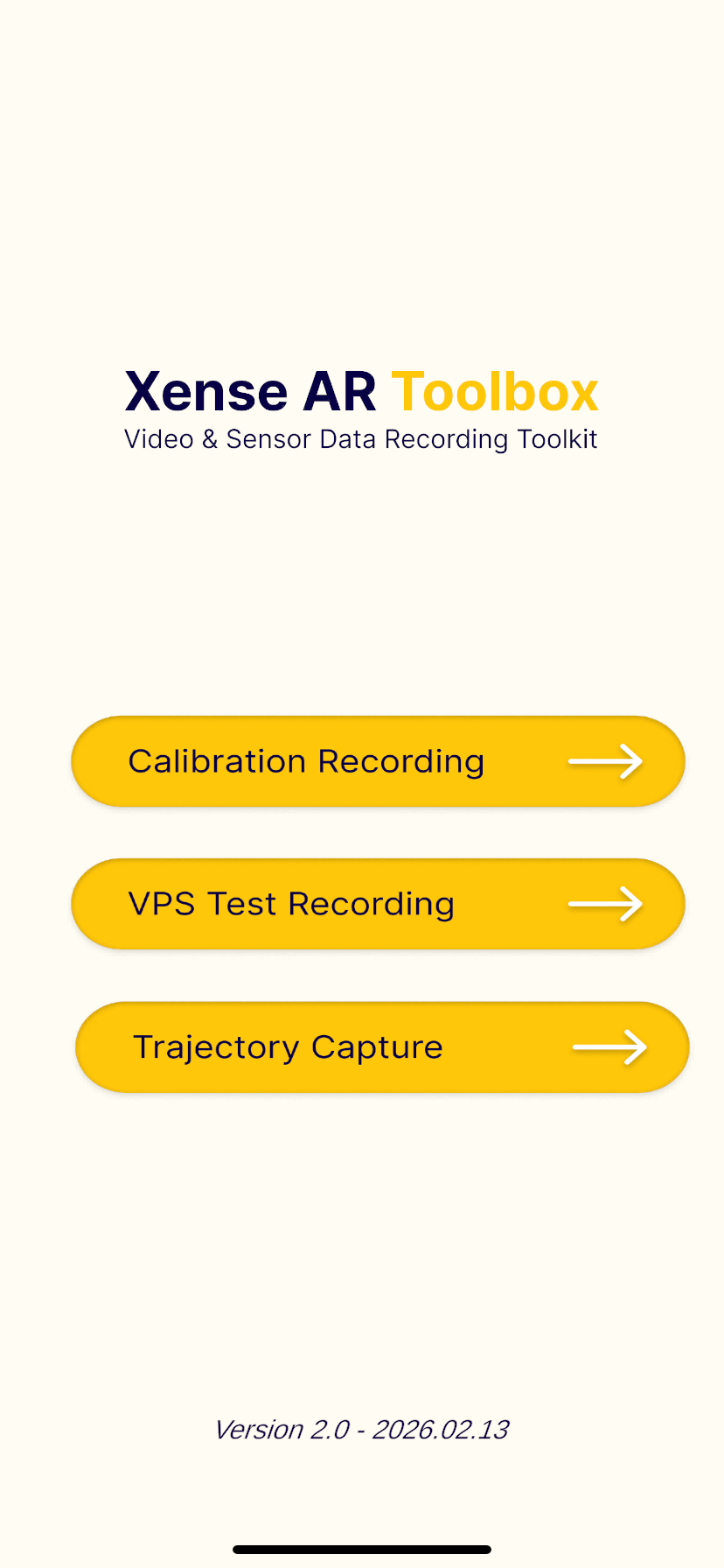
- Once the application starts successfully, you will see the main interface as shown below. The three main features are clearly displayed on this screen.
Collecting Correct Data
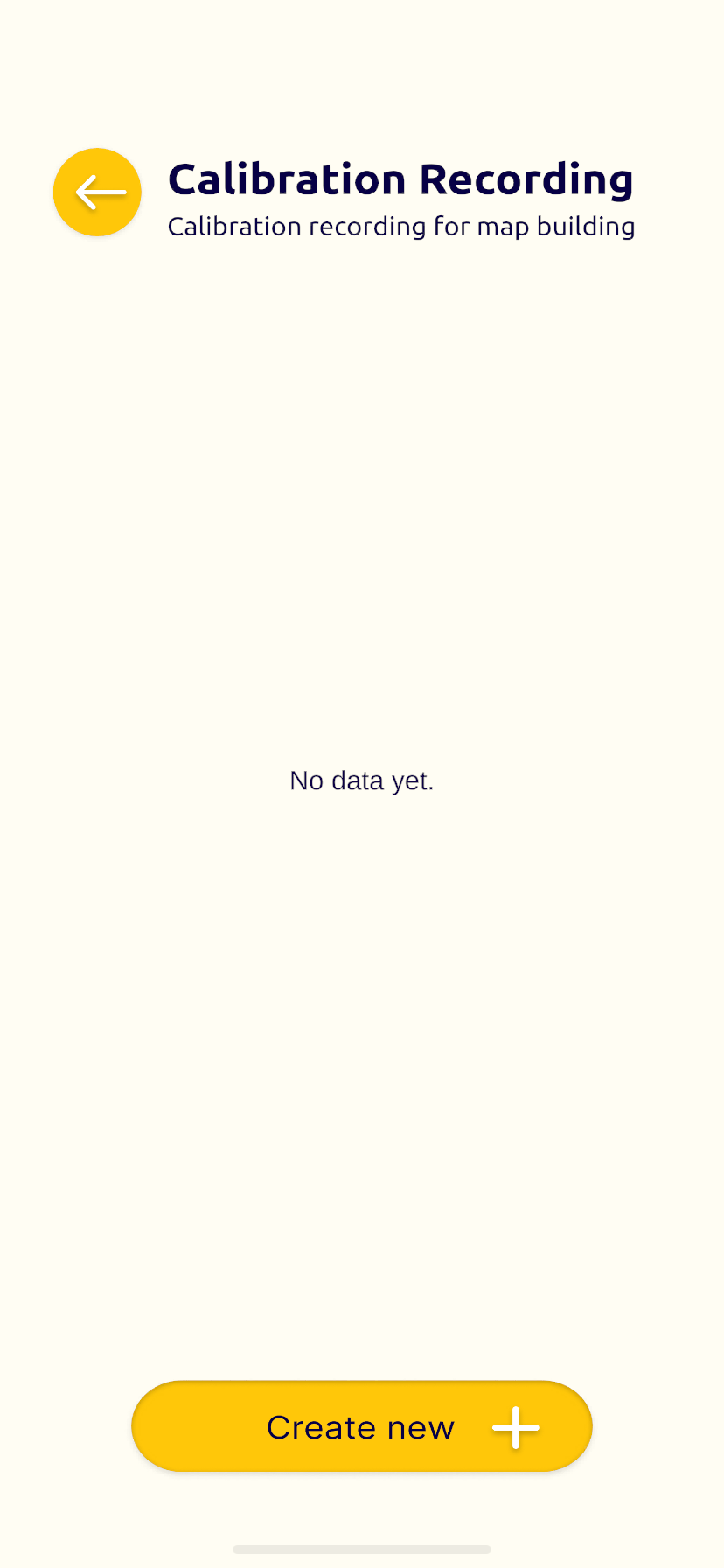
When entering Calibration mode, the screen interface will appear as shown below.
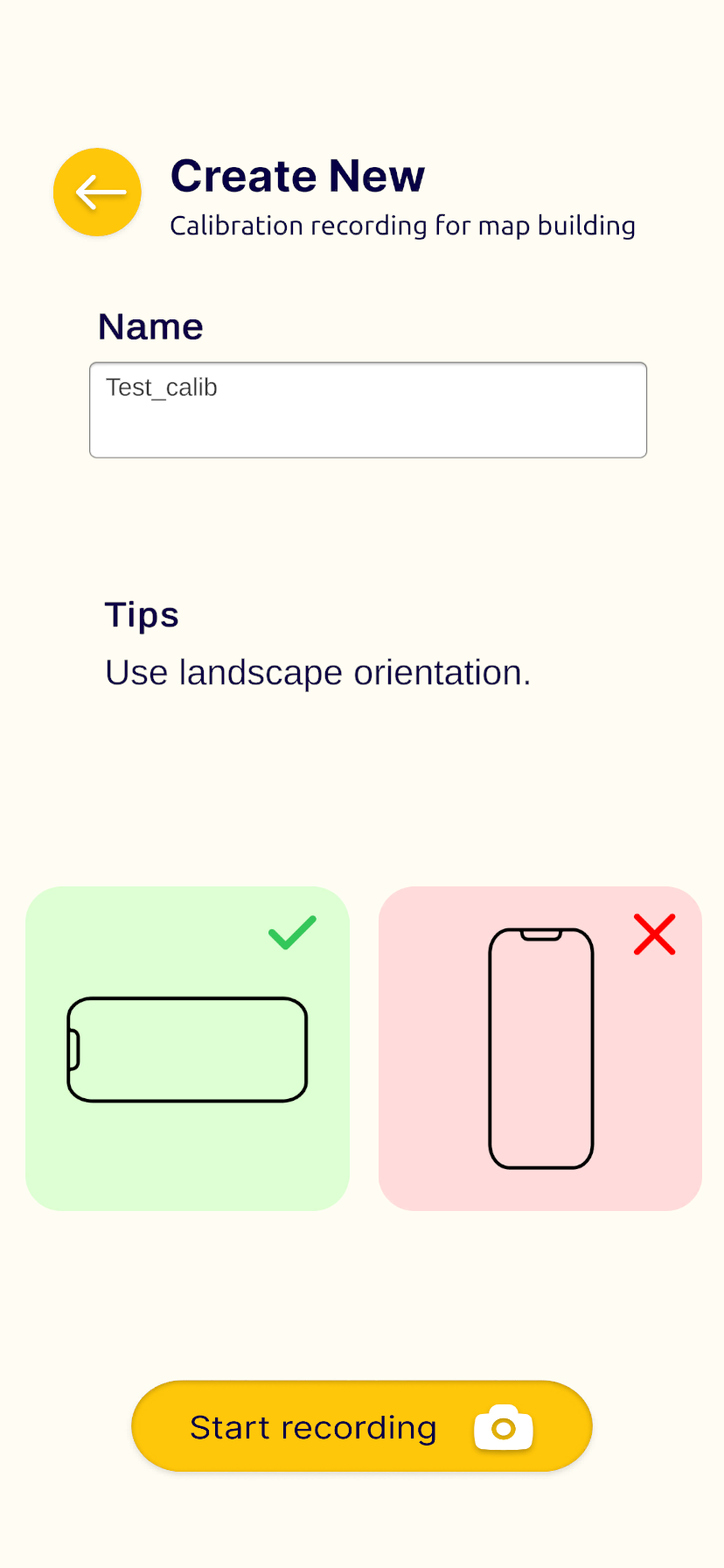
Step 1: Tap Create new, and in the File name field, enter the file name using the format:
Name_yyyymmdd_correct.
Step 2: Choose a clearly recognizable location within the recording space.
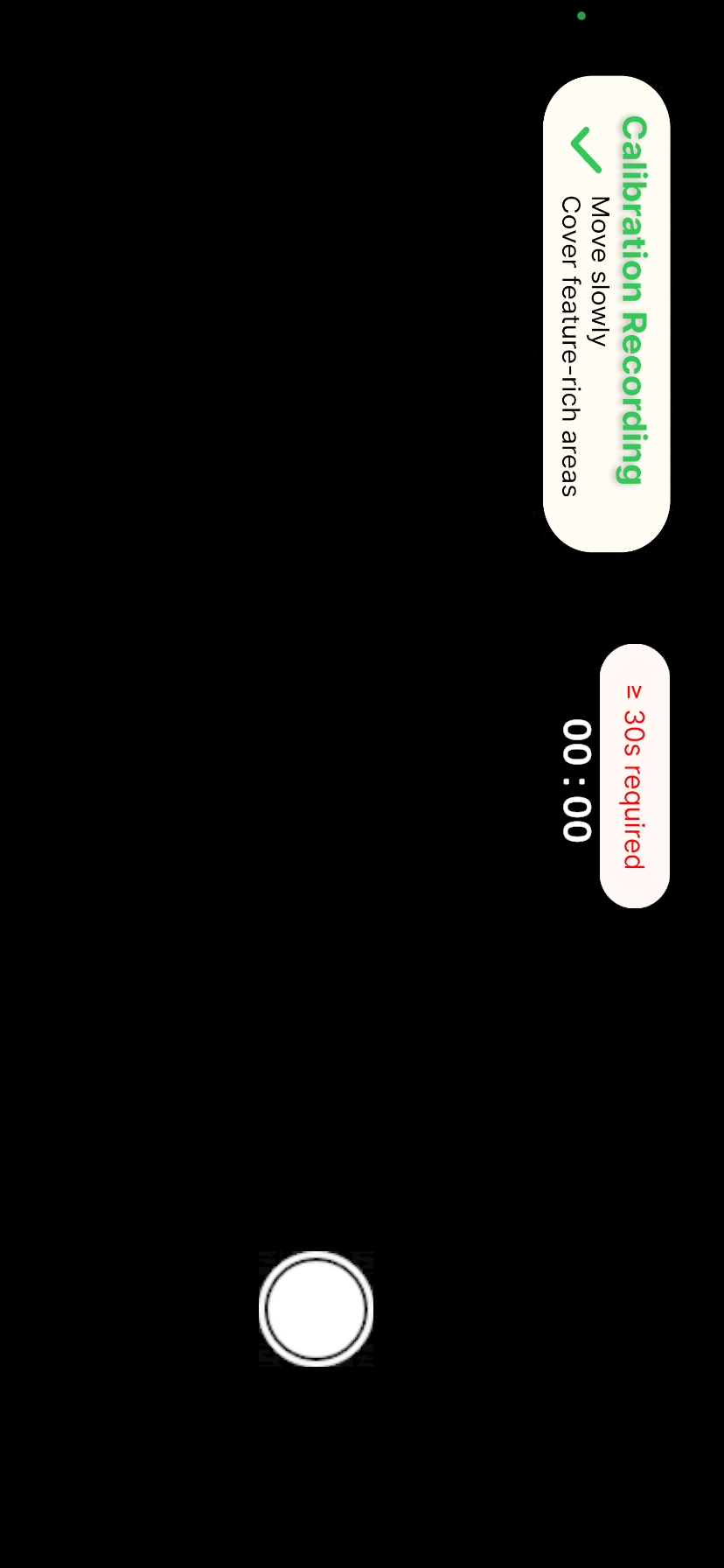
Hold the phone horizontally (landscape mode) and record a video lasting 30 to 60 seconds.
Note:
- File names must be unique (no duplicates).
- After finishing recording, wait until the data is fully saved before exiting the application.
 |  |  |
Collecting Trajectory Data
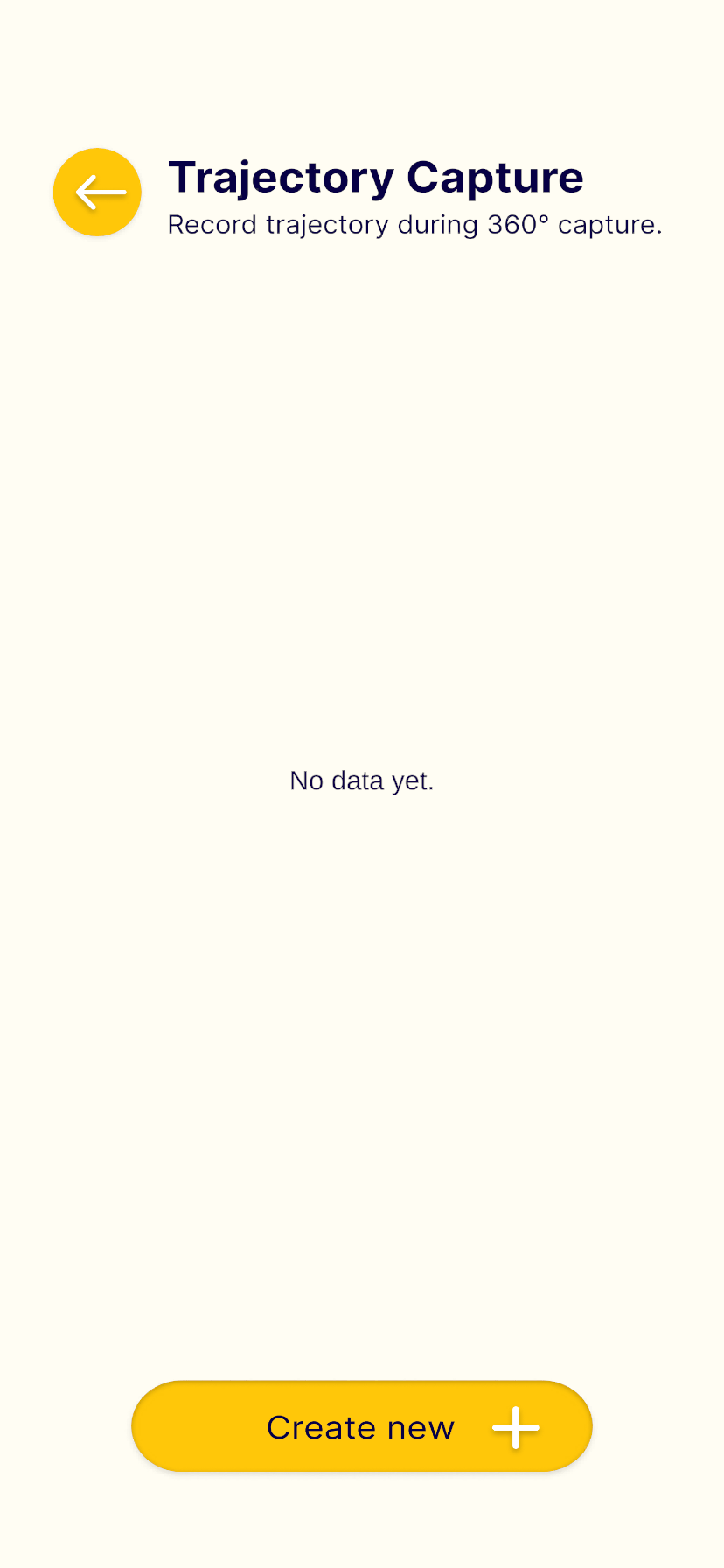
When entering Trajectory mode, the screen interface will appear as shown below.
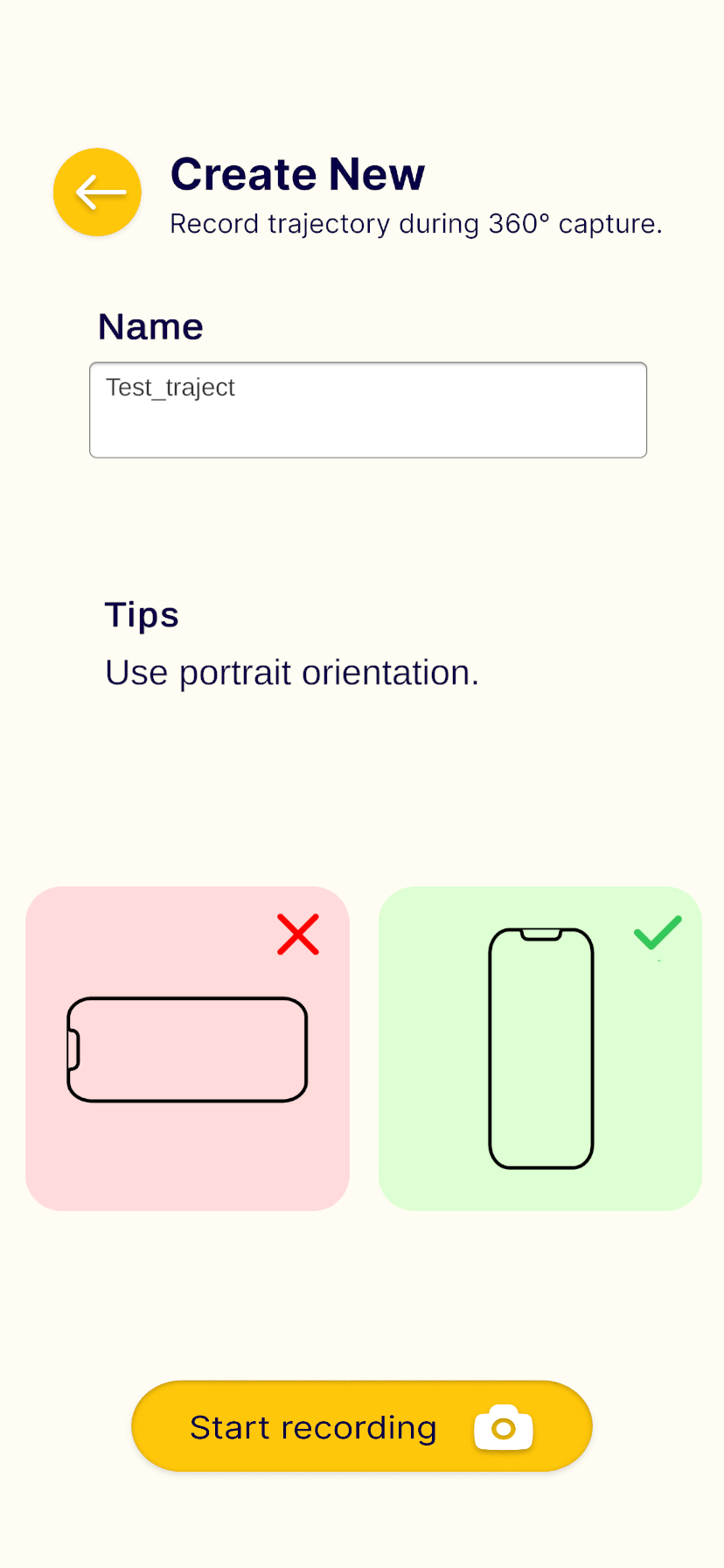
Step 1: Tap Create new, and in the File name field, enter the file name using the format:
Name_yyyymmdd_traject.
Step 2: Mount the phone on a holder.
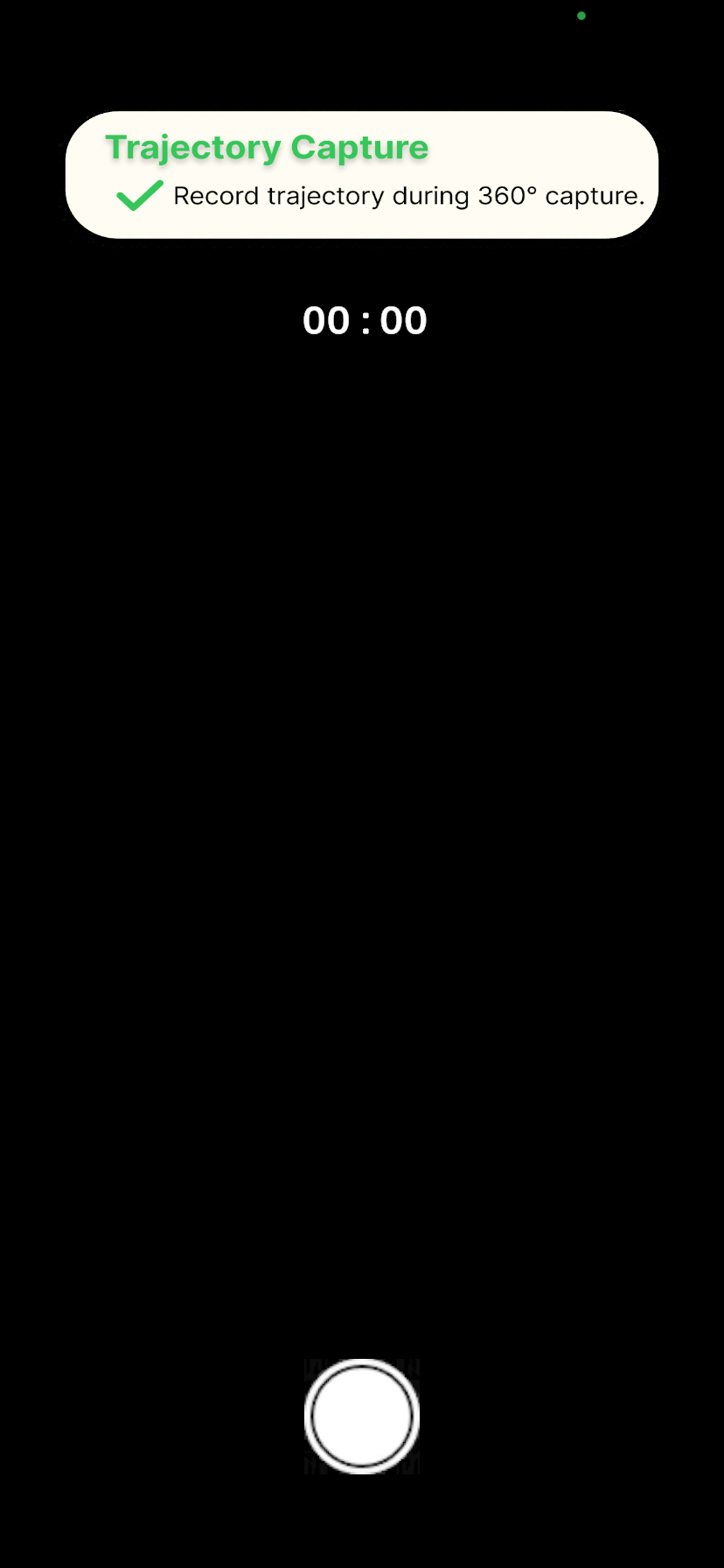
When collecting data together with a 360 camera, start recording simultaneously (see details in 360 Camera Filming Guidelines).
Note:
- File names must be unique (no duplicates).
- After finishing recording, wait until the data is fully saved before exiting the application.
 |  |  |
Data Extraction Guide
Step 1: Open the Files app on your iPhone, then navigate to the XenseAR ToolBox folder.
Inside, you will see subfolders corresponding to the different ToolBox functions.
Step 2: Open the folder matching the recording date.
This folder contains the data files you have just recorded.
Step 3: Tap the ”…” icon in the top-right corner of the screen, then press Select to choose the files you want to extract.
Step 4: Tap the Share icon in the bottom-left corner of the screen and proceed with sharing the selected files.