Login and Load a Spatial Map
This guide describes how to authenticate and load a Spatial Map after importing the provided XenseAR package into Unity.
Prerequisites
- The provided XenseAR package has been downloaded.
- The package has been successfully imported into the Unity project.
- No compilation errors are present in the Unity Console.
Procedure
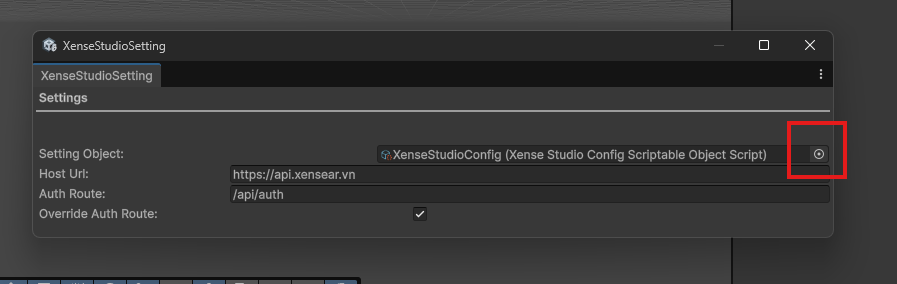
1. Configure Studio Settings
Navigate to:
ARWorld -> Settings -> Studio Setting
Assign the required Setting Object.
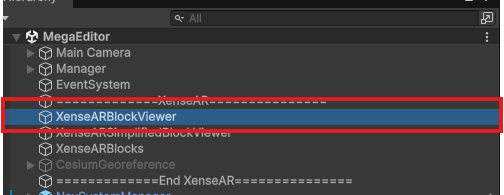
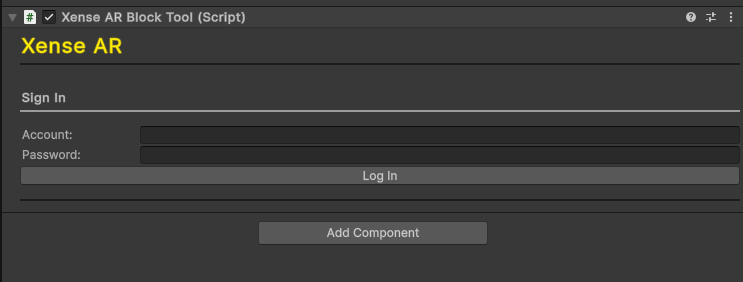
2. Login
Log in using the account credentials provided.
ℹ️ Info
Ensure your internet connection is stable during authentication.
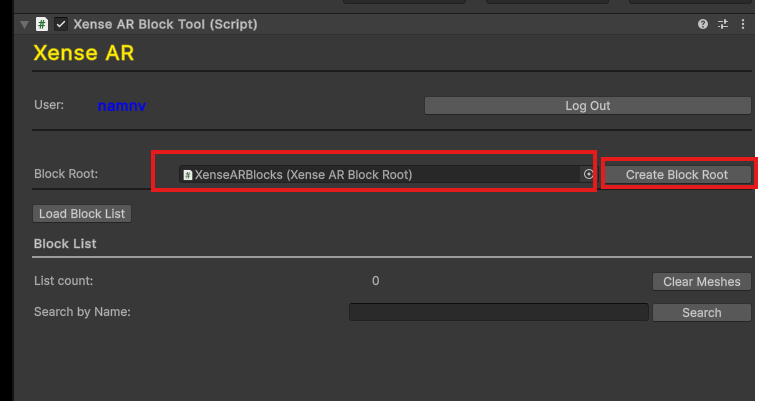
3. Assign Block Root
- Assign an existing
Block Rootif available. - If none exists, click
CreateBlockRootto generate one.
4. Load Block List
Click Load Block List to retrieve available Blocks associated with the current Account.
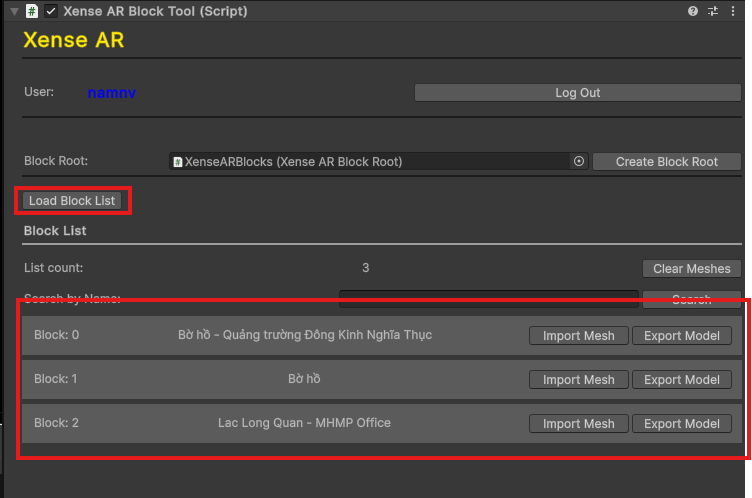
5. Import Mesh
For the Block you want to edit, click Import Mesh.
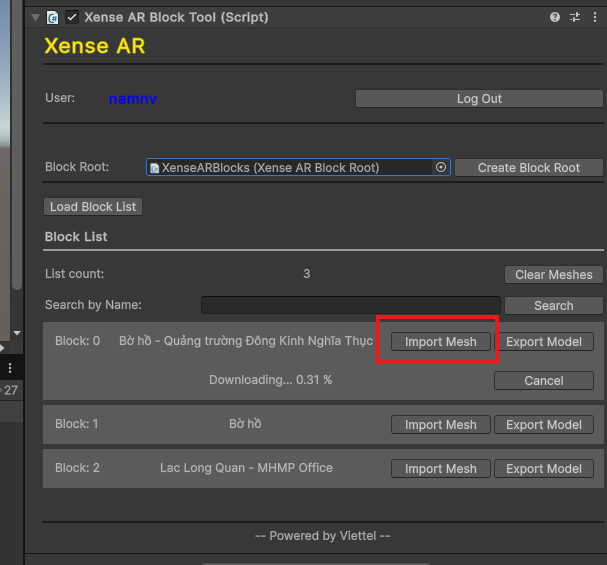
6. Wait for Mesh Initialization
Wait for the mesh data to finish loading and initializing in the scene.
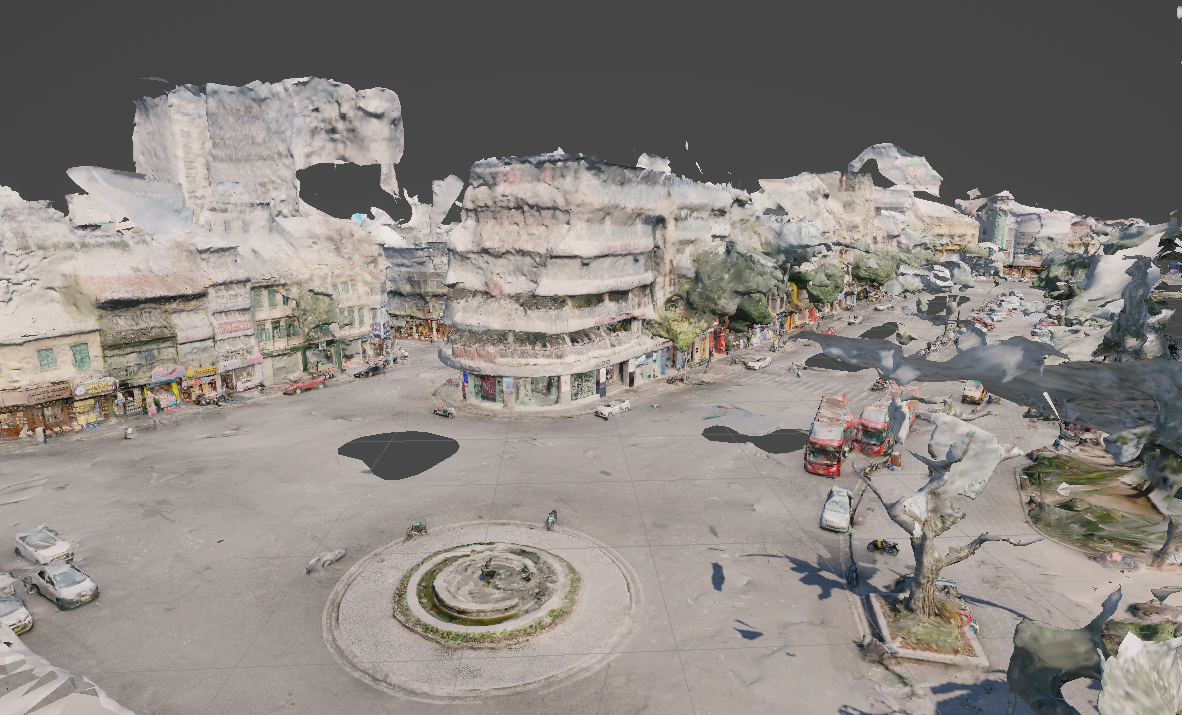
Ready for Content Editing
Once the mesh is successfully loaded:
- The Block geometry will appear in the Scene view.
- You can begin creating and positioning Anchors.
- All content will be aligned relative to the loaded Spatial Map.
⚠️ Warning
Do not create or adjust Anchors before the mesh is fully loaded.
Incomplete spatial initialization may result in incorrect positioning at runtime.
Last updated on