Adding GLTF Content
This guide describes how to create and configure a GLTF-based Anchor within a Block.
Prerequisites
- A valid
.gltfor.glbfile URL. - The target Block already exists in the Unity Hierarchy.
Procedure
-
Create an Empty GameObject under the Block Root
In the Unity Hierarchy, create a new
Empty GameObjectas a child of theBlock Root.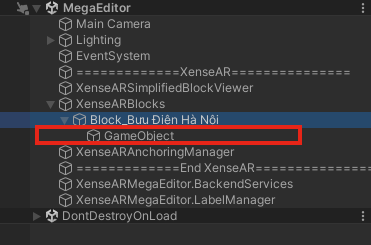
-
Add the
Gltf Anchor EditorcomponentSelect the newly created GameObject and add the
Gltf Anchor Editorcomponent.
-
Enter the GLTF URL
Provide the URL of the
.gltfor.glbfile in theMedia.Urlfield. -
Configure the
GroupfieldAssign an appropriate value to the
Groupproperty for logical organization. -
Click
Saveand wait for the content to loadAfter saving, the GLTF model will be downloaded and instantiated in the scene.
Once loaded, you can modify the Anchor’s
Transform, including:- Position
- Rotation
- Scale
-
Configure animation (if available)
After clicking
Save, clickFetchto retrieve the list of available animations (if the GLTF contains animations).Copy the desired animation name into the
Animationfield, then clickSaveagain to apply it.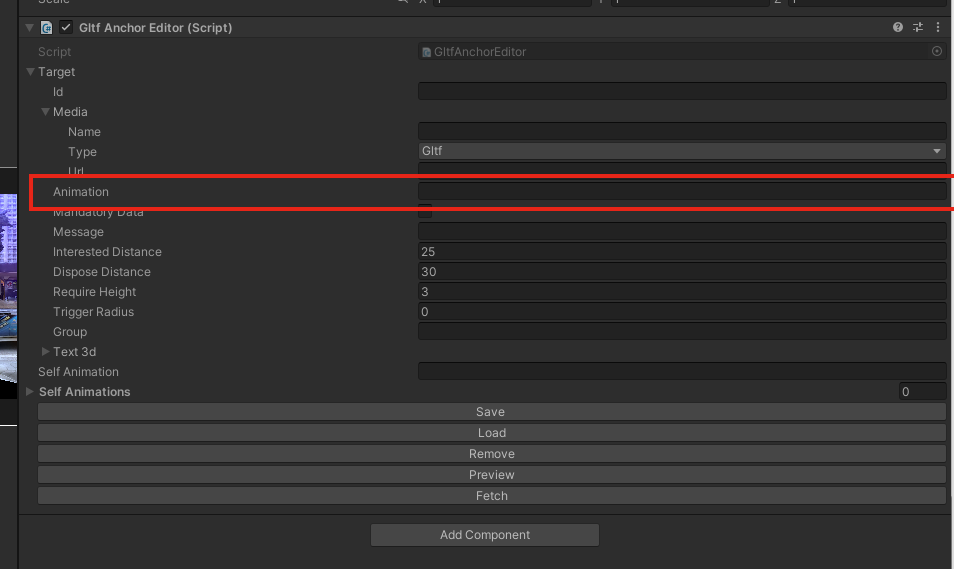
ℹ️ Info
If no animations appear after clicking Fetch, the GLTF file may not contain embedded animation clips.
⚠️ Warning
Ensure the animation name matches exactly (case-sensitive). An incorrect name will prevent the animation from playing at runtime.