1. Introduction
Community is the resource-sharing section of Xense AR Portal, where users can search for and use Spatial Maps and Free Assets publicly shared by the community.
Instead of creating every resource from scratch, users can obtain available Spatial Maps and Assets, then use and customize them according to their needs when creating AR experiences.
Community currently provides two main types of resources:
- Spatial Map: Publicly shared spatial maps.
- Free Asset: Free AR resources such as 3D models, images, videos, and audio.
2. Accessing Community
Step 1 – Log in to Xense AR Portal
- Access Xense AR Portal.
- Log in to your account.
Step 2 – Open Community
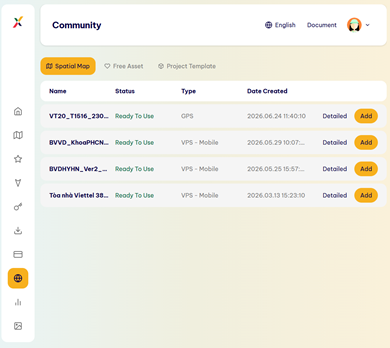
- After logging in, select Community.
- Here, you can choose between Spatial Map and Free Asset.
3. Using Spatial Map
Spatial Maps are spatial maps publicly shared by users in Community. You can add these free maps to your account and continue using and customizing them.
Step 3 – Find a Spatial Map
- In Community, select Spatial Map.
- The system displays the free Spatial Maps currently available to the public.
- Browse the list and select the map you want to use.
Step 4 – View Spatial Map Information
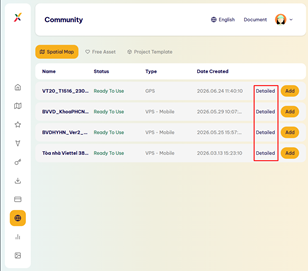
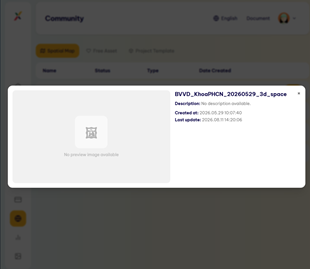
- Select Details on the Spatial Map you are interested in.
- View the map details.
Step 5 – Add a Spatial Map to Your Account
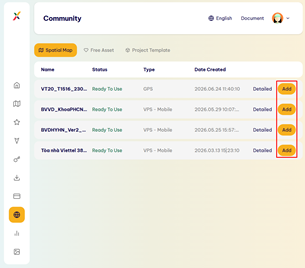
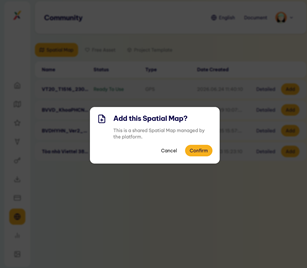
- Select Add.
- The system displays a confirmation popup. Select Confirm to add the Spatial Map to your account’s Spatial Map list.
- The Spatial Map can now be treated as your own copy, which you can use and customize according to your needs.
Note: Selecting Add does not modify the original publicly shared Spatial Map. You can use the copy added to your account to continue customizing it.
Last updated on