4. Using Free Assets
Free Assets are resources that are publicly shared for users to use when building AR experiences.
The available asset types include:
- 3D Model: 3D models.
- Image: Images.
- Video: Videos.
- Audio: Audio files.
Step 7 – Find a Free Asset
-
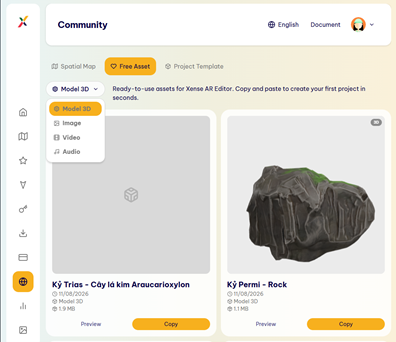
In Community, select Free Asset.
-
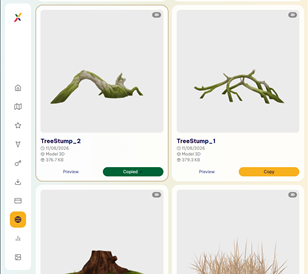
The system displays the free assets that have been publicly shared.
-
Use the filter if you want to find a specific type of asset. You can filter by the following formats:
- 3D Model
- Image
- Video
- Audio
Step 8 – Preview an Asset
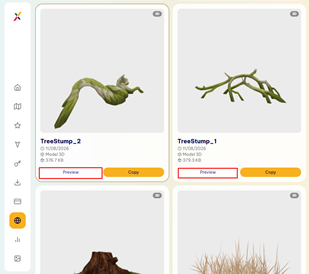
- Select the asset you want to view and click Preview.
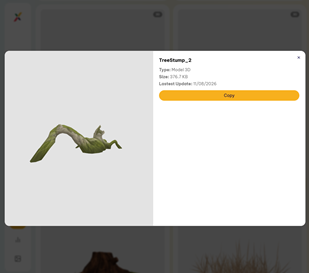
- View the asset details and preview the asset to determine whether it is suitable for your AR experience.
Step 9 – Copy an Asset
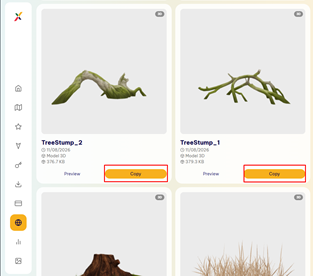
- If you want to use the asset, select Copy.
- The system automatically copies the asset URL.
- This URL can be used in the Web Editor.
Step 10 – Add an Asset to an AR Experience
- Access the Web Editor.
- Open the map you want to edit.
- Paste the asset URL copied from Community. Place the asset in the Spatial Map and customize it according to your needs.
Last updated on