The Make Spatial Map Public function allows you to change the access level of a Spatial Map from Private → Public.
After the Spatial Map is reviewed and approved by an administrator, it will be publicly displayed in Community, allowing other users to access and use the map.
Procedure
Step 1
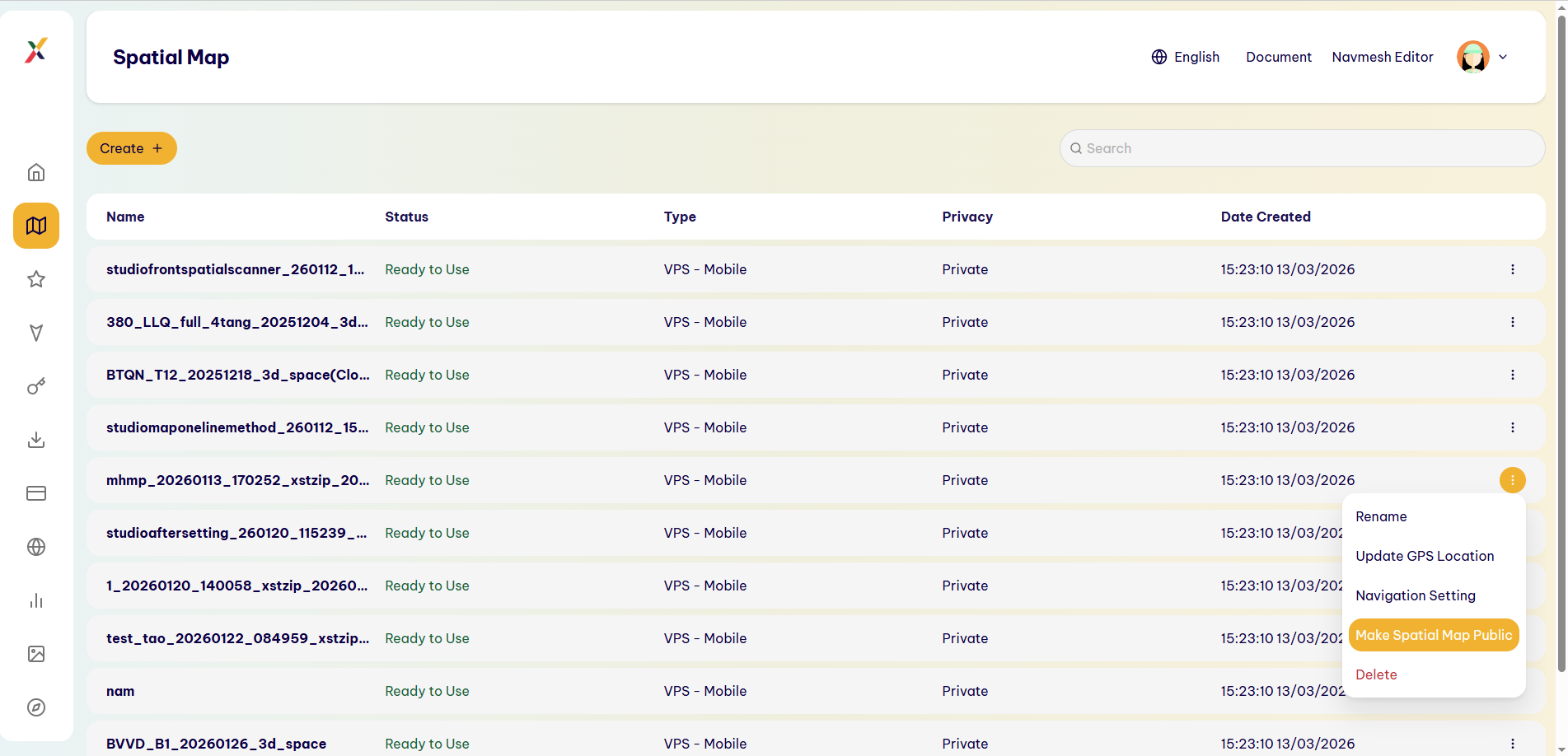
Select the map you want to make public. The map must meet the following conditions:
- Status: Ready To Use
- Type: VPS
- Privacy: Private
Step 2
Select ⋮ → Make Spatial Map Public.
Step 3
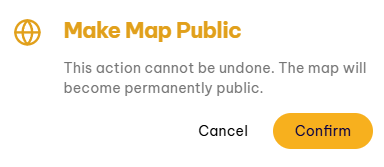
The system displays the Make Map Public confirmation dialog with the following warning:
“This action cannot be undone. The map will become permanently public.”
Step 4
Choose one of the following options:
- Cancel: Cancel the operation.
- Confirm: Confirm changing the Spatial Map to Public.
Step 5
Select Confirm.
Result
The Privacy setting of the Spatial Map changes from:
Private → Public
Last updated on