Xense AR Account Overview
With a single account, users can log in and synchronize data across the entire Xense AR software ecosystem:
- Xense AR Creator Portal (
xensear.vn/portal): The central platform for managing Spatial Map data, AR Projects, service packages, credentials, and Community features. - Xense AR Scan App (Mobile): A mobile application used to capture real-world videos/spatial data packages and synchronize them directly with the user’s Portal account for processing into 3D Spatial Maps.
- Xense AR Editor (Web Editor & Unity Editor): Tools for editing and placing AR content. Users can log in to access Spatial Maps and Projects they own.
- Xense AR App (Mobile): The end-user application for experiencing AR. Logging in allows users to view and test private Projects and internally shared Projects before they are publicly released.
- Other products in the Xense AR ecosystem.
Creating an Account
Getting Started with Portal Features
Users need to register and log in to a personal account to access the Portal features.
1.1. Registering a New Account
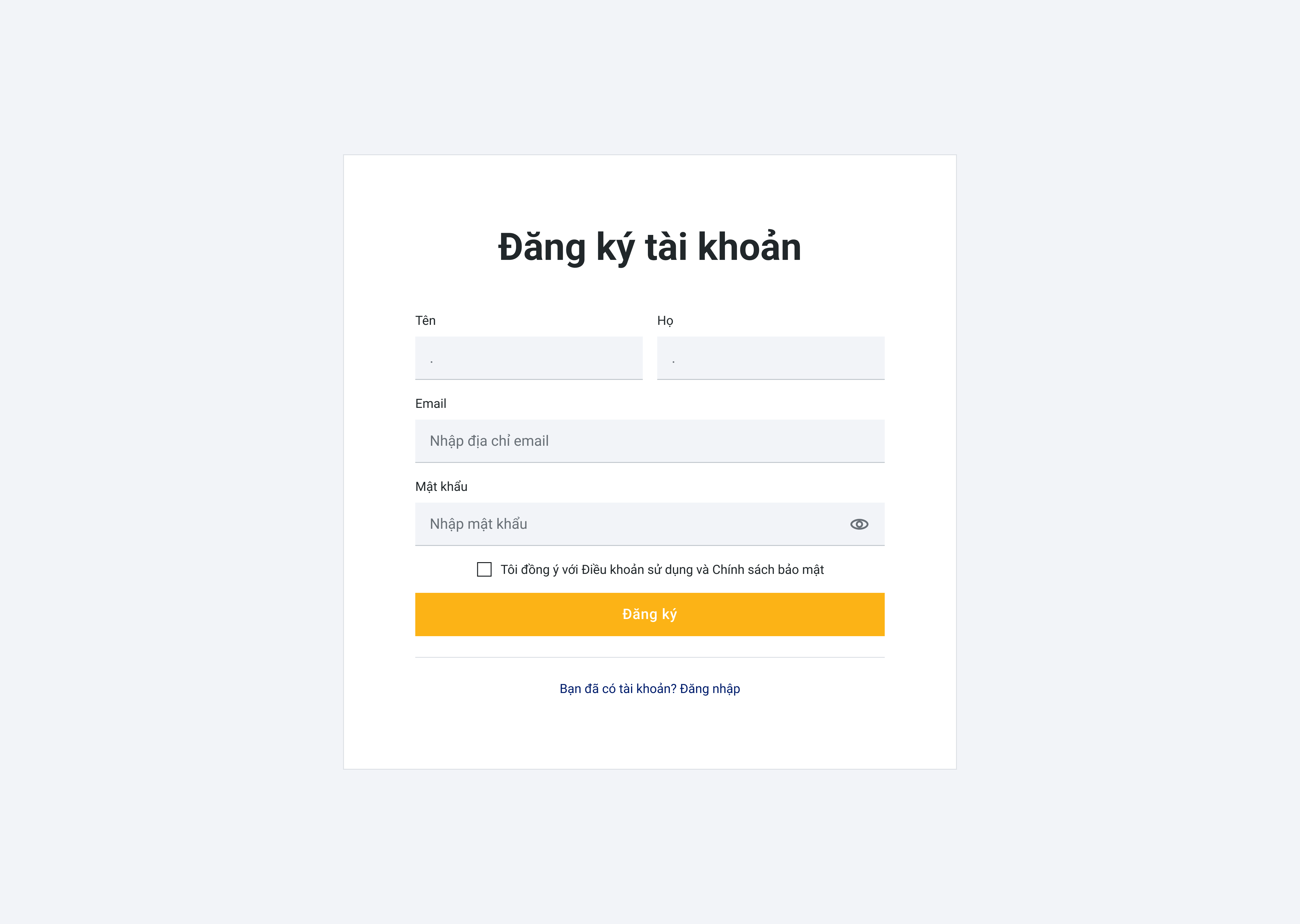
If the user does not have an account, follow these steps to register:
Step 1: Access the Portal Step 2: Select “Register Account” Step 3: Enter the required personal information:
- Full Name
- Password
Step 4: Select the checkbox:
“I agree to the Terms of Use and Privacy Policy”
Step 5: Select “Register” to complete the account creation process.
Step 6: After successful registration, the user can log in using the newly created email and password to access the system.
1.2. Logging In to an Account
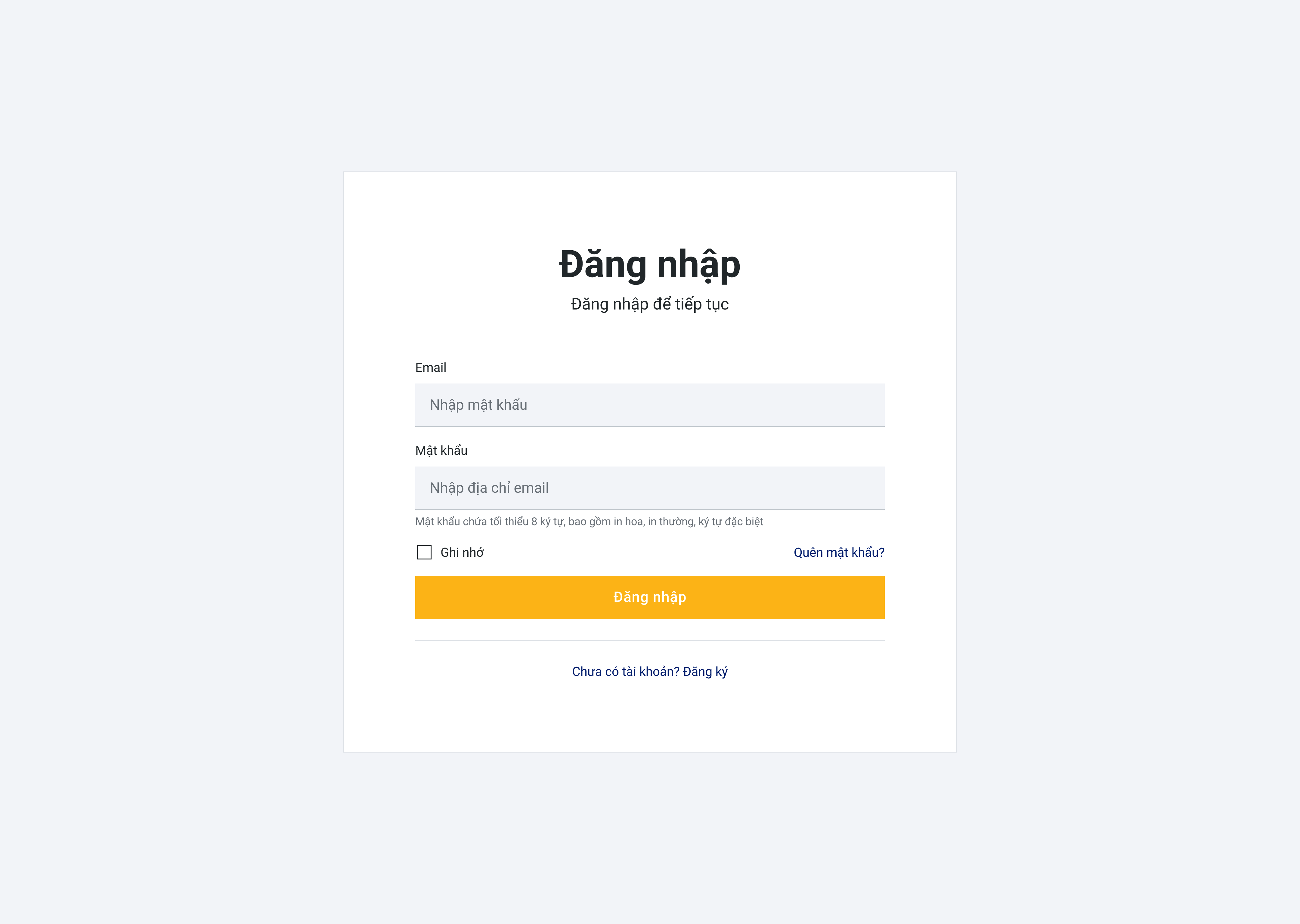
If the user already has an account, follow these steps to log in:
Step 1: Access the Portal Step 2: Select “Log In” Step 3: Enter the login information:
- Password
Step 4: Select “Log In” to access the system.
💡 Tip: If you forget your password, select “Forgot Password” to recover your account using the registered email address.